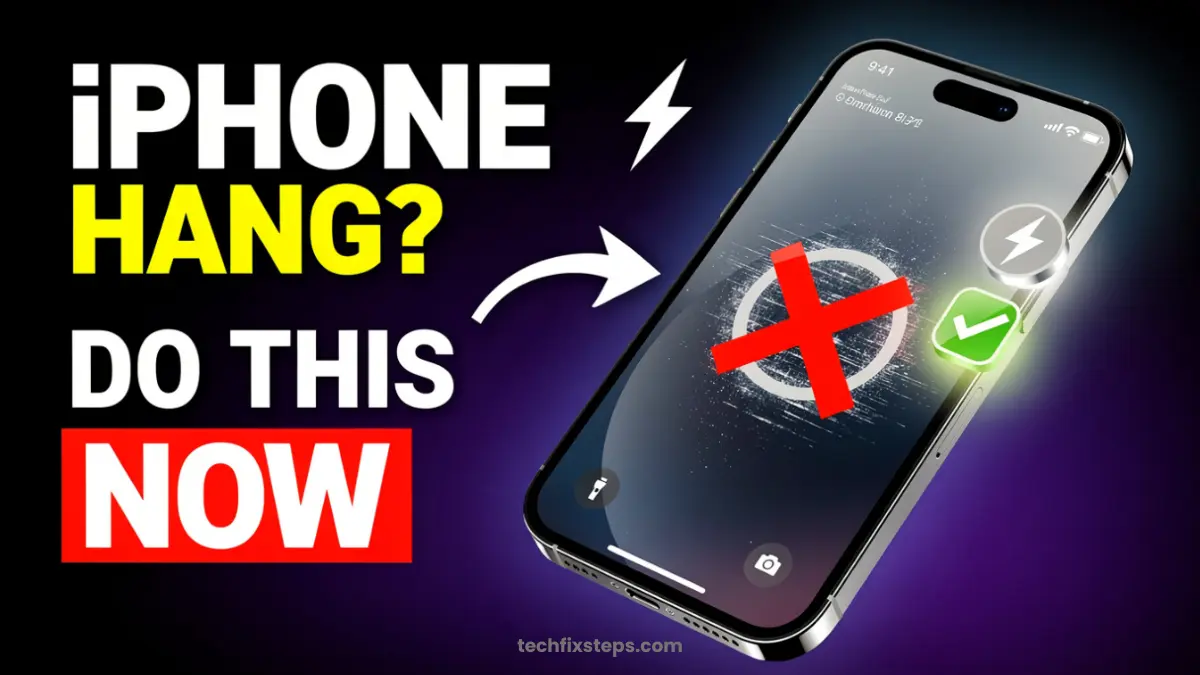

Is your iPhone hanging, stuck, or not working properly? Sometimes, you may face problems like iPhone freezing, apps not responding, network issues, or the phone getting stuck on a screen.
In such cases, a simple restart may not work. That’s where Force Restart comes in. This is an official and safe method to fix many iPhone problems.
What Is Force Restart?
Force Restart is a special way to restart your iPhone when it is not responding. It helps to fix hanging issues, solve temporary bugs, improve performance, and fix network glitches.
Note:Data Safety
How to Force Restart iPhone (All Models)
The steps are different depending on your iPhone model. Follow the correct method below for your specific device.
1. For iPhone 6s, iPhone 6s Plus & iPhone SE (1st Generation)
Steps:
- Press and hold the Power button + Home button together
- Keep holding until the Apple logo appears
- Release both buttons
Note:
2. For iPhone 7 and iPhone 7 Plus
Steps:
- Press and hold the Power button + Volume Down button
- Keep holding until you see the Apple logo
- Release the buttons
Note:
3. For iPhone 8, iPhone SE (2nd/3rd Gen), iPhone X and Newer Models
Steps:
- Quickly press and release the Volume Up button
- Quickly press and release the Volume Down button
- Press and hold the Power button
- Keep holding until the Apple logo appears, then release the button
Note:
When Should You Use Force Restart?
You should use this method whenever your device is in a state where regular software controls don't work:
- iPhone is totally stuck or frozen on a screen
- The screen is black but the phone is vibrating or making sounds
- Apps are crashing repeatedly and won't close
- Network signal is lost and won't return through normal toggles
Important Things to Know
- No Data Loss: Force restart does not delete any photos, apps, or messages.
- No Settings Reset: It does not change your wallpaper, ringtones, or Wi-Fi passwords.
- Completely Safe: It is a built-in troubleshooting method designed by Apple Support.
Tip:
Conclusion
Force Restart is one of the easiest and most effective ways to fix common iPhone problems. Just follow the correct steps for your model, and your iPhone will start working normally again.
Final Tip
If your iPhone frequently hangs, consider updating iOS to the latest version, clearing storage if you're low on space, or simply restarting regularly to keep things fresh.
Spread the Knowledge
If you found this guide helpful, share it with your network!
You Might Also Like
Handpicked guides and fixes related to what you just read.
No Wi-Fi? How to Use Your iPhone as a High-Speed Hotspot
Learn how to turn your iPhone into a powerful Wi-Fi router. Share your mobile data with laptops, tablets, and other devices in just a few simple steps.
Read more
iPad Stuck on Apple Logo? Here is How to Fix it Instantly in 2026
Is your iPad frozen on the Apple logo or not responding? Follow our comprehensive guide to troubleshooting common iPad issues, performing a hard reset, and getting your device back to normal without losing data.
Read more
A Complete Guide to Backing Up WhatsApp Chats on Your iPhone
Don't lose your precious memories! Learn how to securely back up your WhatsApp chats, photos, and videos to iCloud on your iPhone with our simple step-by-step guide.
Read more
How to Purchase an App on Apple Devices (iPhone, iPad, Mac in 2026)
A clear, step-by-step guide for beginners on how to buy apps from the official App Store on iPhone, iPad, and Mac, including payment setup and troubleshooting.
Read more