
1. Introduction
Sometimes you may need to turn off your iPhone to save battery, fix minor software glitches, or restart the device. Apple allows users to power off the iPhone 17 Pro and iPhone 17 Pro Max in more than one way.
Below are the two easiest methods you can use to safely shut down your device.
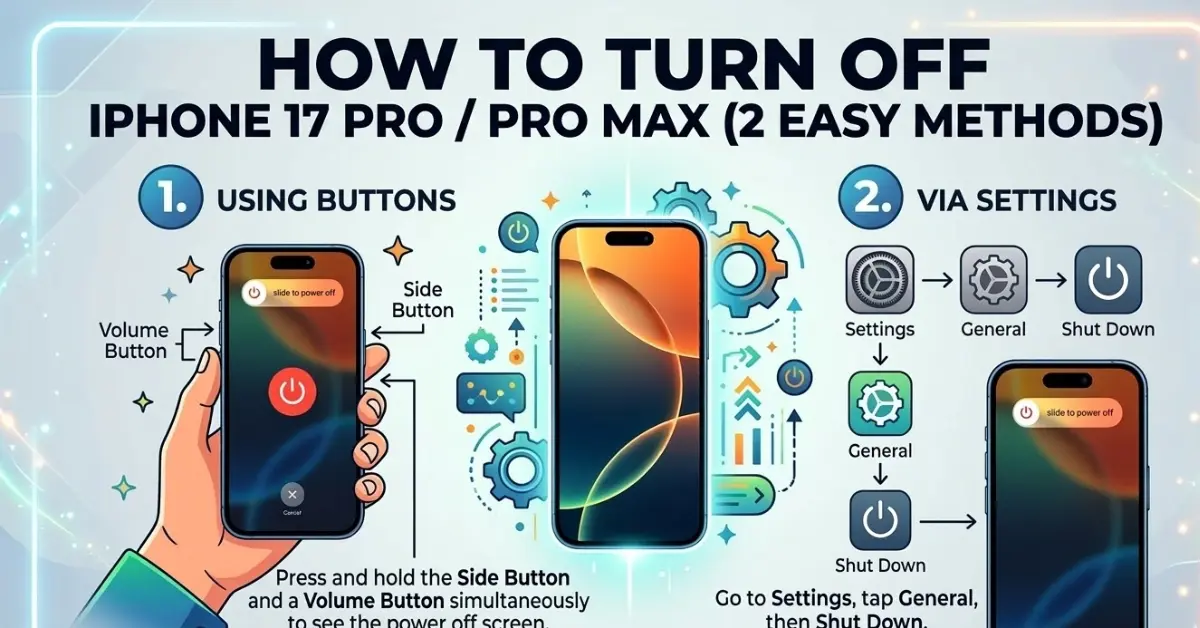
2. Method 1: Turn Off iPhone 17 Pro Using Hardware Buttons
This is the most common method and works even if your screen is slightly laggy or unresponsive.
Locate the Buttons
- Find the Volume Up or Volume Down buttons on the left side of your iPhone.
- Find the Side button on the right side of your phone.
Step-by-Step Instructions
- Press and Hold: Press and hold the Side button and either Volume button at the same time.
- Wait for Menu: After a few seconds, the Power Off screen will appear.
- Slide to Power Off: You will see a Power icon slider on the screen. Slide the icon to the right to turn off your iPhone.
Your iPhone 17 Pro will now quickly shut down.
3. Method 2: Turn Off iPhone 17 Pro Max Using Control Center
Another convenient way to switch off your iPhone is through the software-based Control Center, which is great if you prefer not using buttons.
Step-by-Step Instructions
- Open Control Center: Swipe down from the top-right corner of your screen.
- Find the Power Icon: At the top of the Control Center, you will see a small power icon.
- Long Press: Tap and hold the power icon for a moment.
- Power Menu Appears: The Power Off menu will appear on your screen.
- Slide to Turn Off: Slide the Power icon to the right.
Your iPhone 17 Pro Max will now power off immediately.
4. When Should You Turn Off Your iPhone?
Turning off your iPhone occasionally can help maintain its health and performance. We recommend doing it once every few days to help with:
- Fixing temporary software glitches.
- Improving device performance and responsiveness.
- Saving battery power during long periods of inactivity.
- Resetting background processes that may be stuck.
5. Quick Comparison Table
| Method | How to Access | Best When |
|---|---|---|
| Hardware Buttons | Side button + Volume button | Screen is lagging or unresponsive |
| Control Center | Swipe down → Long press Power | Faster on-screen method |
6. Conclusion
There are two simple ways to turn off the iPhone 17 Pro or iPhone 17 Pro Max. Use the hardware buttons if you prefer the traditional method, or use the Control Center if you want a quick on-screen option. Both methods are safe and effectively shut down your device.
Spread the Knowledge
If you found this guide helpful, share it with your network!
You Might Also Like
Handpicked guides and fixes related to what you just read.
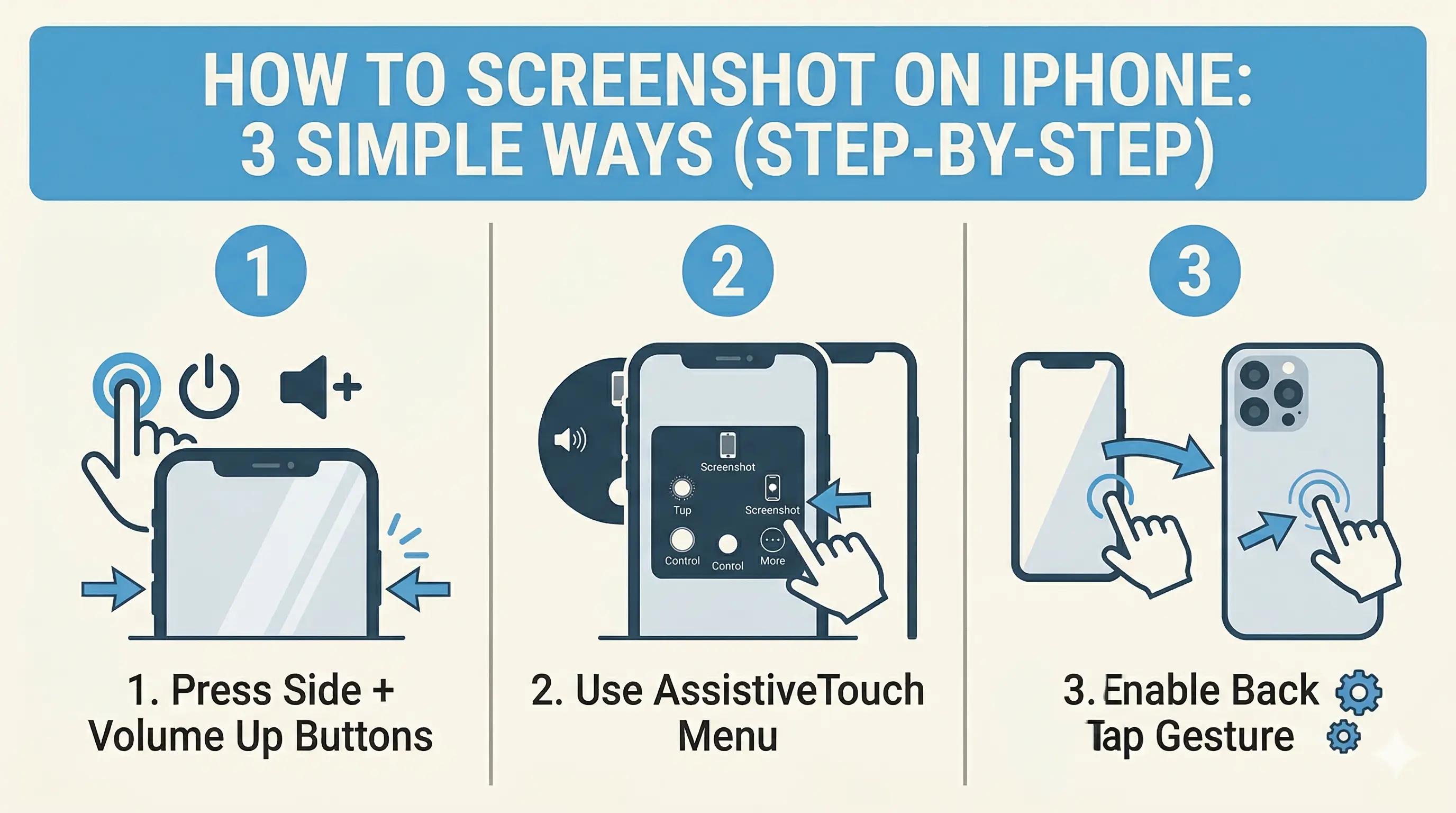
How to Screenshot on iPhone: 3 Simple Ways (Step-by-Step)
Capture your iPhone screen like a pro! Discover the hidden Back Tap feature, AssistiveTouch shortcuts, and the classic button method for seamless screenshots.
Read more
No Wi-Fi? How to Use Your iPhone as a High-Speed Hotspot
Learn how to turn your iPhone into a powerful Wi-Fi router. Share your mobile data with laptops, tablets, and other devices in just a few simple steps.
Read more
15+ Hidden iPhone Settings You Should Turn On Right Now (2026 Guide)
Unlock the full potential of your iPhone 17 or older with these 15+ hidden settings. Improve security, extend battery life, and boost your productivity with secret iOS features you probably didn't know existed.
Read more
A Complete Guide to Backing Up WhatsApp Chats on Your iPhone
Don't lose your precious memories! Learn how to securely back up your WhatsApp chats, photos, and videos to iCloud on your iPhone with our simple step-by-step guide.
Read more